
Config Lab: Layer 3 Switching w/ SVIs
Layer 3 switches, aka multilayer switches, route packets using the same logic as IP routers. A layer 3 switch can simultaneously support layer 2 features such as LAN switching and VLANs. To route packets for devices in those VLANs, the switch needs a switched virtual interface (SVI): An interface enabled for layer 3 processing that in effect connects to the VLAN. In this lab, you configure two switches to act as layer 3 switches to support two different VLANs.
The Lab Exercise
Lab Requirements
This lab begins with a working network. It shows two PCs, each in two separate VLANs/Subnets. To start the lab, PCs in the same subnet/VLAN can ping each other. However, PCs in different subnets cannot ping each other to begin the lab. Therefore, you need to configure layer 3 switching on the two distribution switches to route packets between the subnets.
Once you understand the initial configuration, configure distribution switches Dist1 and Dist2 with SVIs – VLAN interfaces – for VLAN 10 and VLAN 11. Use the following details:
- For VLAN 10, create and configure a VLAN 10 interface:
- For Dist1, use address/mask 10.1.10.1/24.
- For Dist2, use address/mask 10.1.10.2/24.
- For VLAN 11, create and configure a VLAN 11 interface:
- For Dist1, use address/mask 10.1.11.1/24.
- For Dist2, use address/mask 10.1.11.2/24.
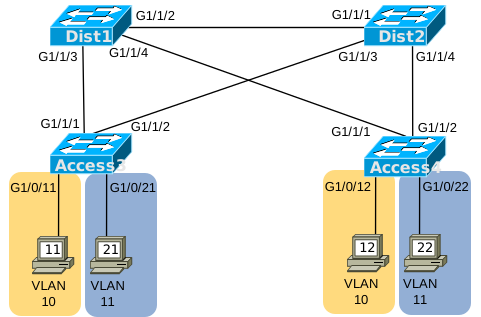
Figure 1: Topology for this Lab
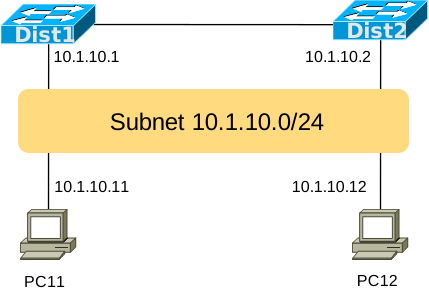
Figure 2: Layer 3 Topology – Subnet 10
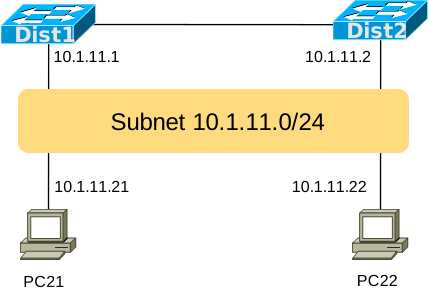
Figure 3: Layer 3 Topology – Subnet 11
Initial Configuration
The four switches begin with VLAN, VLAN trunking, and STP configuration to support the two VLANs used in this lab (VLANs 10 and 11.) The STP config causes switch Dist1 to be the root switch for VLAN 10 and Dist2 to be the root switch for VLAN 11. All switch-to-switch links act as VLAN trunks. For information about the PCs and the router, look below these next four examples.
hostname Dist1
!
vtp mode transparent
vlan 10,11
!
spanning-tree vlan 10 root primary
spanning-tree vlan 11 root secondary
!
interface range GigabitEthernet1/1/1-4
 switchport mode trunk
Example 1: Dist1 Config
hostname Dist2
!
vtp mode transparent
vlan 10,11
!
spanning-tree vlan 11 root primary
spanning-tree vlan 10 root secondary
!
interface range GigabitEthernet1/1/1-4
 switchport mode trunk
Example 2: Dist2 Config
hostname Access3
!
vtp mode transparent
vlan 10,11
!
interface range GigabitEthernet1/1/1-2
 switchport mode trunk
!
interface GigabitEthernet1/0/11
 switchport mode access
 switchport access vlan 10
!
interface GigabitEthernet1/0/21
 switchport mode access
 switchport access vlan 11
Example 3: Access3 Config
hostname Access4
!
vtp mode transparent
vlan 10,11
!
interface range GigabitEthernet1/1/1-2
 switchport mode trunk
!
interface GigabitEthernet1/0/12
 switchport mode access
 switchport access vlan 10
!
interface GigabitEthernet1/0/22
 switchport mode access
 switchport access vlan 11
Example 4: Access4 Config
The four PCs connect to two different access VLANs and subnets, as follows:
- PC11 and PC12: VLAN 10, subnet 10.1.10.0/24, gateway 10.1.10.1.
- PC21 and PC22: VLAN 11, subnet 10.1.11.0/24, gateway 10.1.11.2.
Address: 10.1.10.11
Mask: 255.255.255.0
Gateway: 10.1.10.1
Example 5: PC11 Configuration Settings
Address: 10.1.10.12
Mask: 255.255.255.0
Gateway: 10.1.10.1
Example 6: PC12 Configuration Settings
Address: 10.1.11.21
Mask: 255.255.255.0
Gateway: 10.1.11.2
Example 7: PC21 Configuration Settings
Address: 10.1.11.22
Mask: 255.255.255.0
Gateway: 10.1.11.2
Example 8: PC22 Configuration Settings
Answer Options - Click Tabs to Reveal
You can learn a lot and strengthen real learning of the topics by creating the configuration – even without a router or switch CLI. In fact, these labs were originally built to be used solely as a paper exercise!
To answer, just think about the lab. Refer to your primary learning material for CCNA, your notes, and create the configuration on paper or in a text editor. Then check your answer versus the answer post, which is linked at the bottom of the lab, just above the comments section.
You can also implement the lab using the Cisco Packet Tracer network simulator. With this option, you use Cisco’s free Packet Tracer simulator. You open a file that begins with the initial configuration already loaded. Then you implement your configuration and test to determine if it met the requirements of the lab.
(Use this link for more information about Cisco Packet Tracer.)
Use this workflow to do the labs in Cisco Packet Tracer:
- Download the .pkt file linked below.
- Open the .pkt file, creating a working lab with the same topology and interfaces as the lab exercise.
- Add your planned configuration to the lab.
- Test the configuration using some of the suggestions below.
You can also implement the lab using Cisco Modeling Labs – Personal (CML-P). CML-P (or simply CML) replaced Cisco Virtual Internet Routing Lab (VIRL) software in 2020, in effect serving as VIRL Version 2.
If you prefer to use CML, use a similar workflow as you would use if using Cisco Packet Tracer, as follows:
- Download the CML file (filetype .yaml) linked below.
- Import the lab’s CML file into CML and then start the lab.
- Compare the lab topology and interface IDs to this lab, as they may differ (more detail below).
- Add your planned configuration to the lab.
- Test the configuration using some of the suggestions below.
Network Device Info:
This table lists the interfaces used in the lab exercise documentation that differ from those used in the sample CML file.
| Device | Lab Port | CML Port |
| Dist1 | G1/1/2 | G1/2 |
| Dist1 | G1/1/3 | G1/3 |
| Dist1 | G1/1/4 | G1/0 |
| Dist2 | G1/1/1 | G1/1 |
| Dist2 | G1/1/3 | G1/3 |
| Dist2 | G1/1/4 | G1/0 |
| Access3 | G1/1/1 | G1/1 |
| Access3 | G1/1/2 | G1/2 |
| Access3 | G1/0/11 | G0/1 |
| Access3 | G1/0/21 | G0/2 |
| Access4 | G1/1/1 | G1/1 |
| Access4 | G1/1/2 | G1/2 |
| Access4 | G1/0/12 | G0/1 |
| Access4 | G1/0/22 | G0/2 |
Lab Answers Below: Spoiler Alert
Lab Answers: Configuration (Click Tab to Reveal)
Lab Answers
Figure 1: Topology for this Lab
ip routing

interface vlan 10
 ip address 10.1.10.1 255.255.255.0
!
interface vlan 11
 ip address 10.1.11.1 255.255.255.0
Example: Dist1 Config
ip routing
!
interface vlan 10
 ip address 10.1.10.2 255.255.255.0
!
interface vlan 11
 ip address 10.1.11.2 255.255.255.0
Example: Dist2 Config
Commentary, Issues, and Verification Tips (Click Tabs to Reveal)
Lab Commentary
First, to configure the lab as requested, you simply need to create VLAN interfaces and configure the IP address and mask information as noted in the lab.
Note that in production networks, you would normally include a First Hop Redundancy Protocol (FHRP) like Hot Standby Router Protocol (HSRP). With HSRP, both layer 3 switches would share an IP address in each subnet, and the PCs would use that IP address as their default gateway address. Both layer 3 switches could then mutually support each other, handling the routing load if the other device fails.
Note that in this lab, because all the PCs refer to the IP addresses on Dist1 as their default gateway, Dist1 will do all the routing in this small lab. Dist2 does not perform any routing. We included both layer 3 switches for extra configuration practice and to let you ponder the issues related to using multiple layer 3 switches.
Known Issues in this Lab
This section of each Config Lab Answers post hopes to help with those issues by listing any known issues with Packet Tracer related to this lab. In this case, the issues are:
| # | Summary | Detail |
| 1 | ASIC configuration | To perform this lab in Cisco PT, you do not need to use any hardware-focused command to enable IP routing entries in the switch ASIC, eg, sdm prefer lanbase-routing. On real switches, you might need to enable L3 switching with such a command. |
Why Would Cisco Packet Tracer Have Issues?
(Note: The below text is the same in every Config Lab.)
Cisco Packet Tracer (CPT) simulates Cisco routers and switches. However, CPT does not run the same software that runs in real Cisco routers and switches. Instead, developers wrote CPT to predict the output a real router or switch would display given the same topology and configuration – but without performing all the same tasks, an actual device has to do. On a positive note, CPT requires far less CPU and RAM than a lab full of devices so that you can run CPT on your computer as an app. In addition, simulators like CPT help you learn about the Cisco router/switch user interface – the Command Line Interface (CLI) – without having to own real devices.
CPT can have issues compared to real devices because CPT does not run the same software as Cisco devices. CPT does not support all commands or parameters of a command. CPT may supply output from a command that differs in some ways from what an actual device would give. Those differences can be a problem for anyone learning networking technology because you may not have experience with that technology on real gear – so you may not notice the differences. So this section lists differences and issues that we have seen when using CPT to do this lab.
Beyond comparing your answers to this lab’s Answers post, you can test in Cisco Packet Tracer (CPT) or Cisco Modeling Labs (CML). In fact, you can and should explore the lab once configured. For this lab, once you have completed the configuration, try these verification steps.
- The distribution switches act as layer 3 switches, routing IP packets between the two subnets. Verify the routing tables on each using the show ip route command.
- The distribution switches act as the default gateway for the PCs. Use the ping command on the PCs to test whether the PCs can ping their respective default gateways.
- Once configured, PCs in one subnet should be able to successfully ping PCs in the other subnet. Use ping to test connectivity between PCs in different subnets.